
iTerm & CLI-Coding: Automated Profile & Theme Switching



I prefer to run my LLM coder agents via a CLI instead of an IDE or using the desktop applications. I find the CLI faster and less resource intensive than running the app's fat clients.
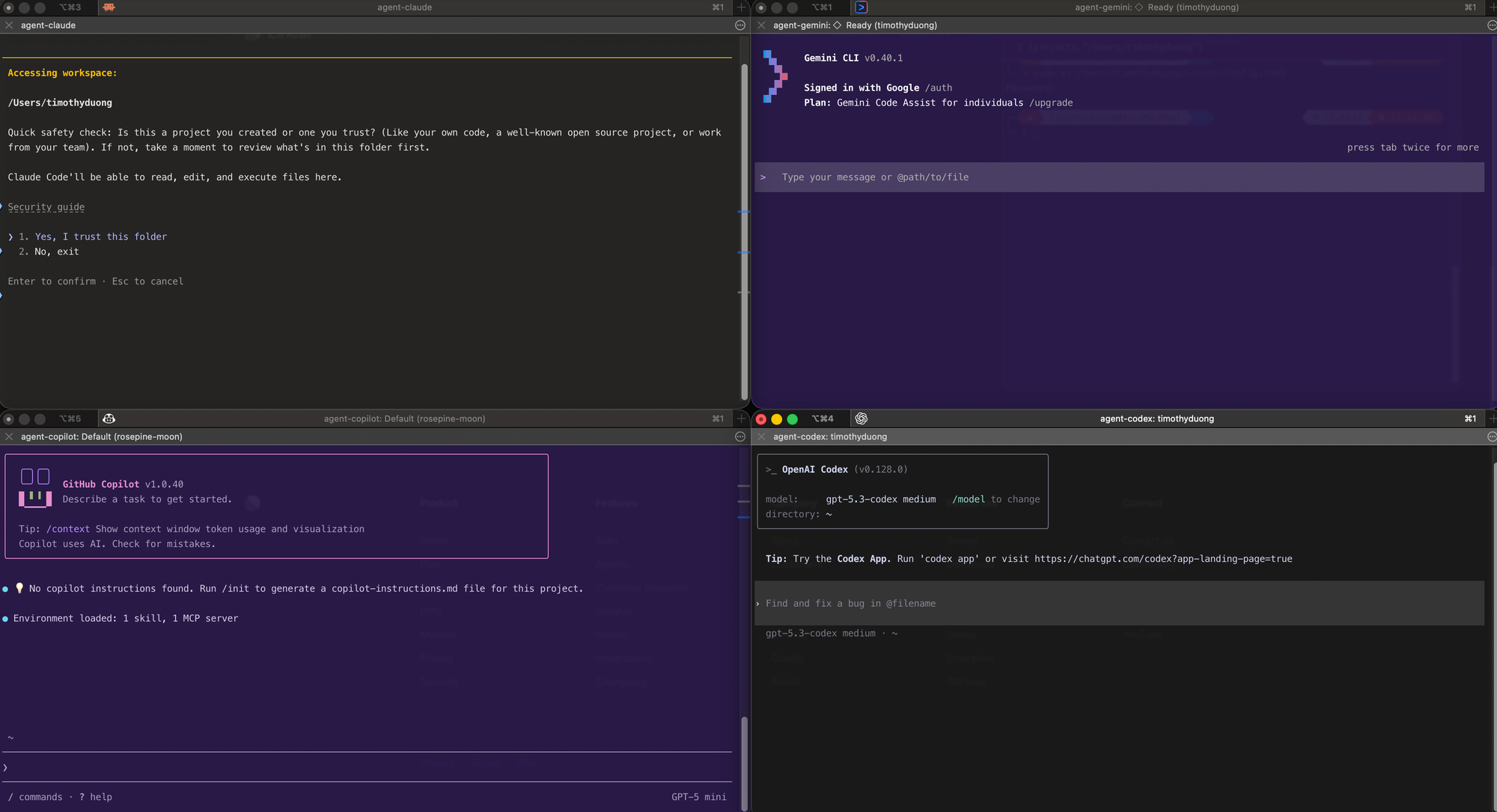
But with this, comes the problem since I'm running multiple AI agent coding sessions, I want to ensure I'm in the right window/session when I have all the agents open
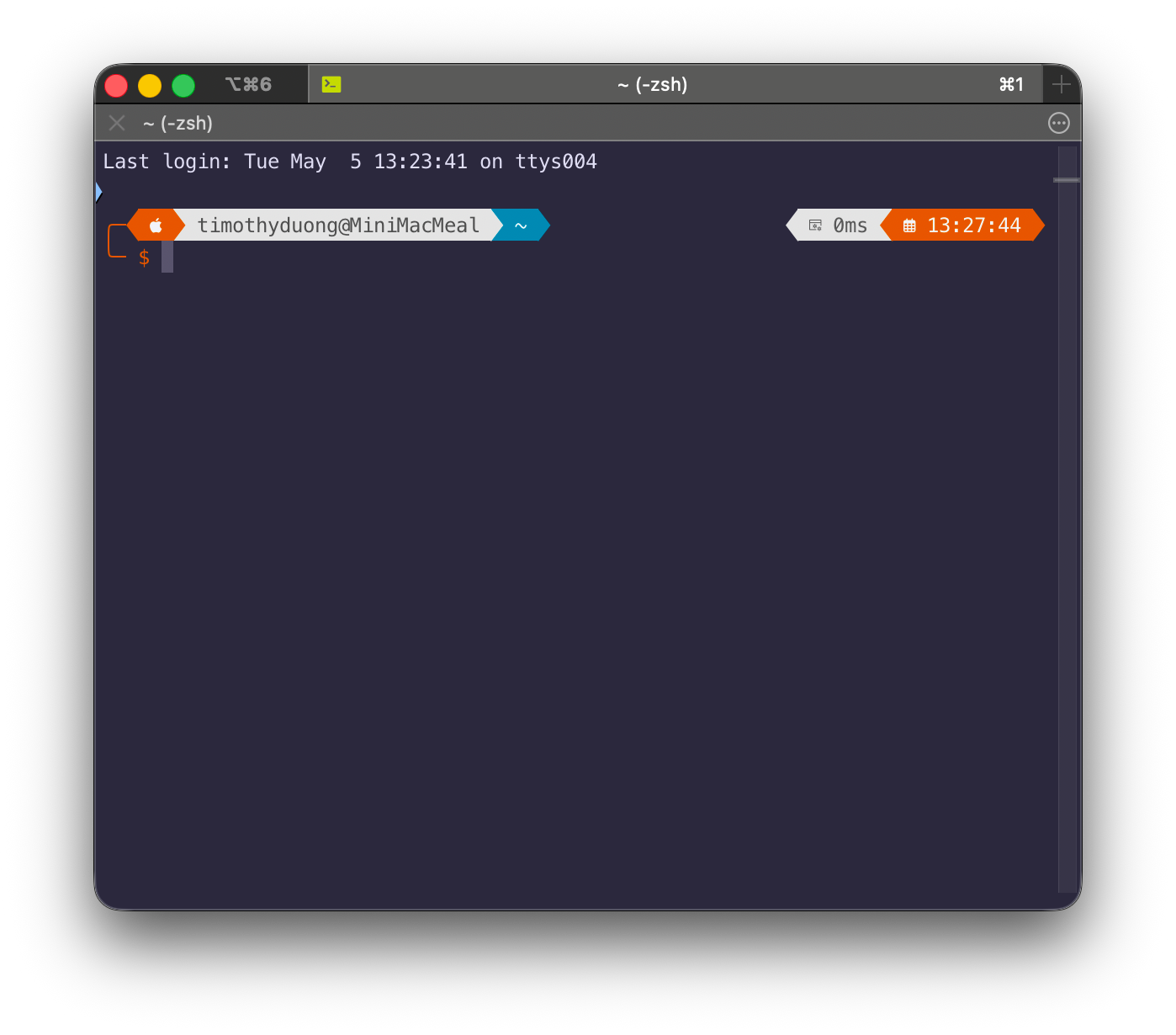
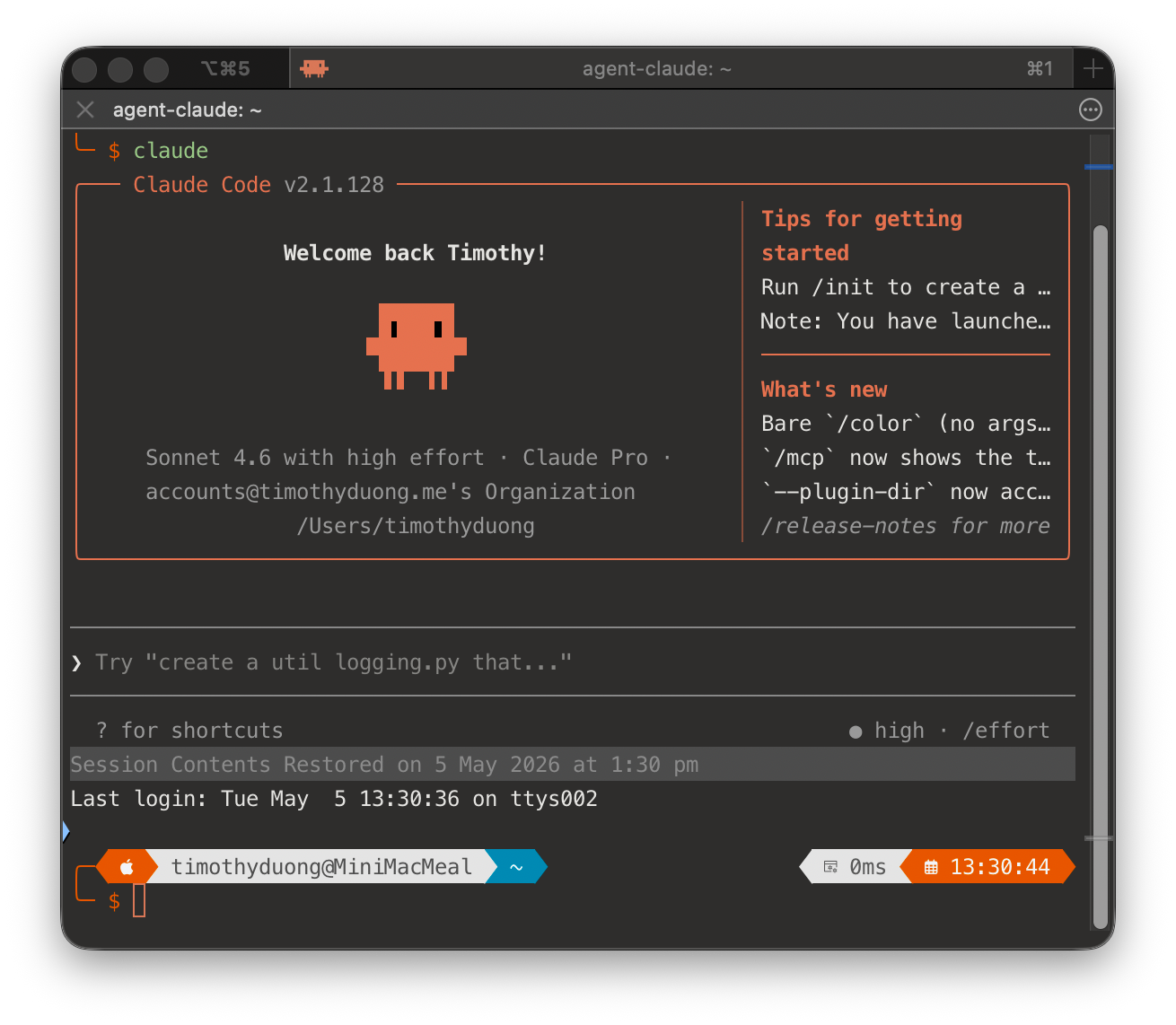
Before & After Preview
Below is my default iTerm session using Rose-pine Moon theme, and the Claude Dark theme being applied when I start a claude session
Walkthrough Instructions
The following guide will walk us through how to:
- Create a custom iTerm profile / theme per coder
- Configure your Shell to automate the switching when using
claude,codex,geminior any other command, and to revert when exiting the session - Testing it.
Step 1. iTerm Profiles
- Open iTerm2.app
- Open
Settings(or hitCMD + ,) - Navigate to Settings > Profiles and select '+' in the bottom left to create a new profile
- The first profile will be for claude-code and will be named
agent-claude- Profile Name: agent-claude
- Profile Type: Terminal
- Title: Profile: Profile & Session Name
- Icon: Custom (find a .png at dashboard icons)
- Switch to
colorsand select 'Color Presets', you can import iterm themes- Go to https://iterm2colorschemes.com/ to download themes. The's a Dark Claude theme I'm using for my Claude profile
- To create others, right click the newly created profile and rename it, upload a new icon and ensure the theme is differently coloured.
Now that your themes are ready, next is to configure your Shell to auto-switch themes.
Step 2. Updating your Shell Profile
I'm running .zsh but if you're running bash (default MacOS shell) then edit your ~/.bashrc file instead.
- Edit your Shell file via iTerm.app or an app like SublimeText.app
- zsh:
sudo vi ~/.zshrc - Bash:
sudo vi ~/.bashrc
- zsh:
- Append the following code was added to my
.zshrcfile.
# iTerm profile switch
_iterm_profile() { printf '\033]1337;SetProfile=%s\007' "$1"; }
_iterm_active=""

_iterm_precmd_restore() {
[[ -n $_iterm_active ]] || return
_iterm_profile Default
_iterm_active=""
}

autoload -Uz add-zsh-hook
add-zsh-hook precmd _iterm_precmd_restore

_iterm_run() {
local p=$1 c=$2; shift 2
_iterm_active=$p; _iterm_profile "$p"
command "$c" "$@"
local rc=$?
_iterm_precmd_restore
return $rc
}

claude()  { _iterm_run agent-claude  claude  "$@"; }
#codex()   { _iterm_run agent-codex   codex   "$@"; }
#gemini()  { _iterm_run agent-gemini  gemini  "$@"; }
#copilot() { _iterm_run agent-copilot copilot "$@"; }
Code Snippet. Remove the Hashtags and/or update the 'agent-names'
Note: Make sure the name of the profile matches what is named in iTerm. I'm using agent-claude for my profile names. I've commented out codex/gemini/copilot. Remove the Hashes if you'd like to use them. Also my default profile is named "Default", you may need to change that too.
- Save to file using
escthen typing:wq!(Or google how to save&quit vim for the umpteenth time) - Reapply the new shell session using
source- zsh:
source ~/.zshrc - bash:
source ~/.bashrc
- zsh:
- Now test with opening
Claudeby typing claude (Assuming you have Claude Code installed) - The session window should change themes - Now test reverting / exiting the session with a
opt+c, it should revert back to your default session.
Voilá










Member discussion