Adventures with Intel Arc Pro B50 GPU

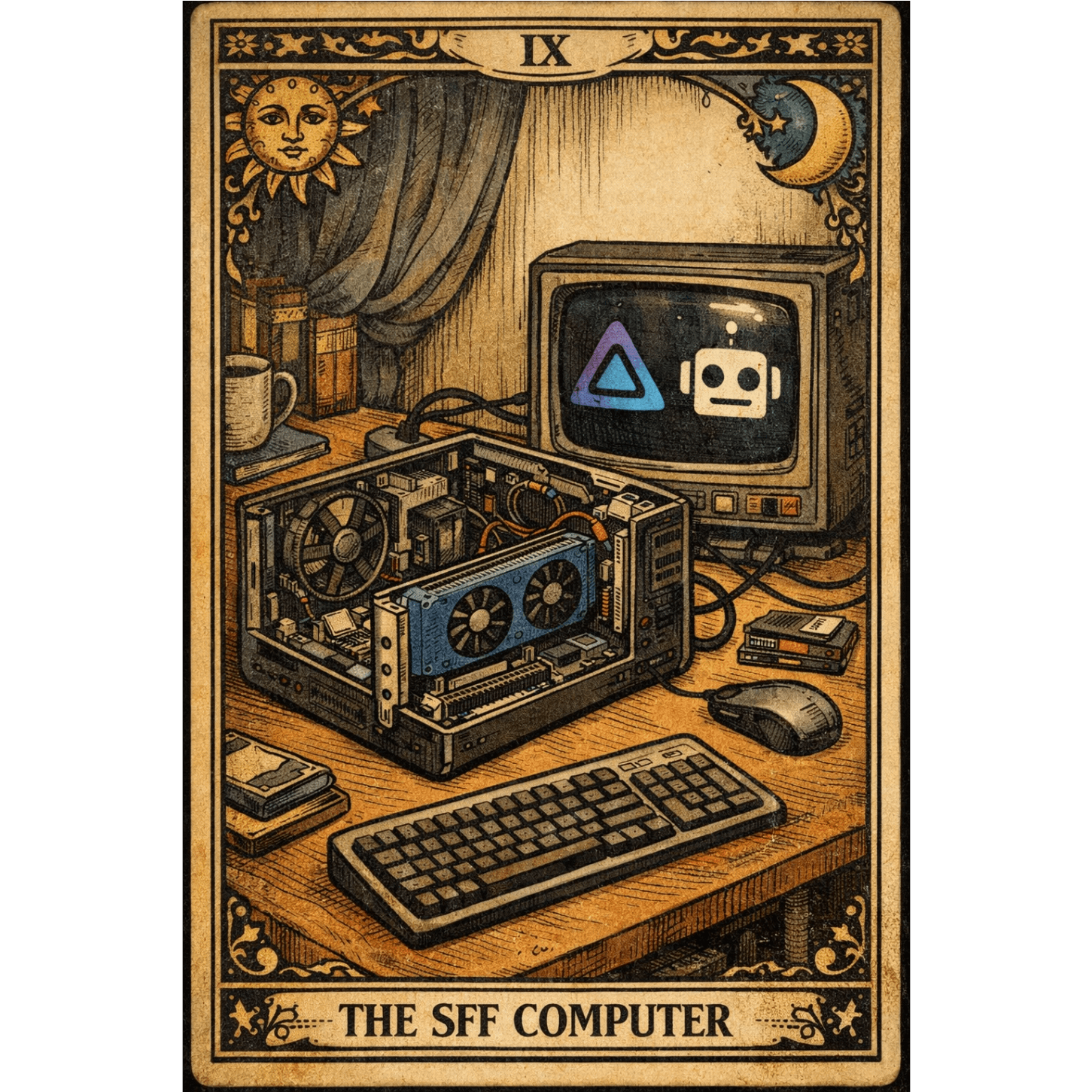
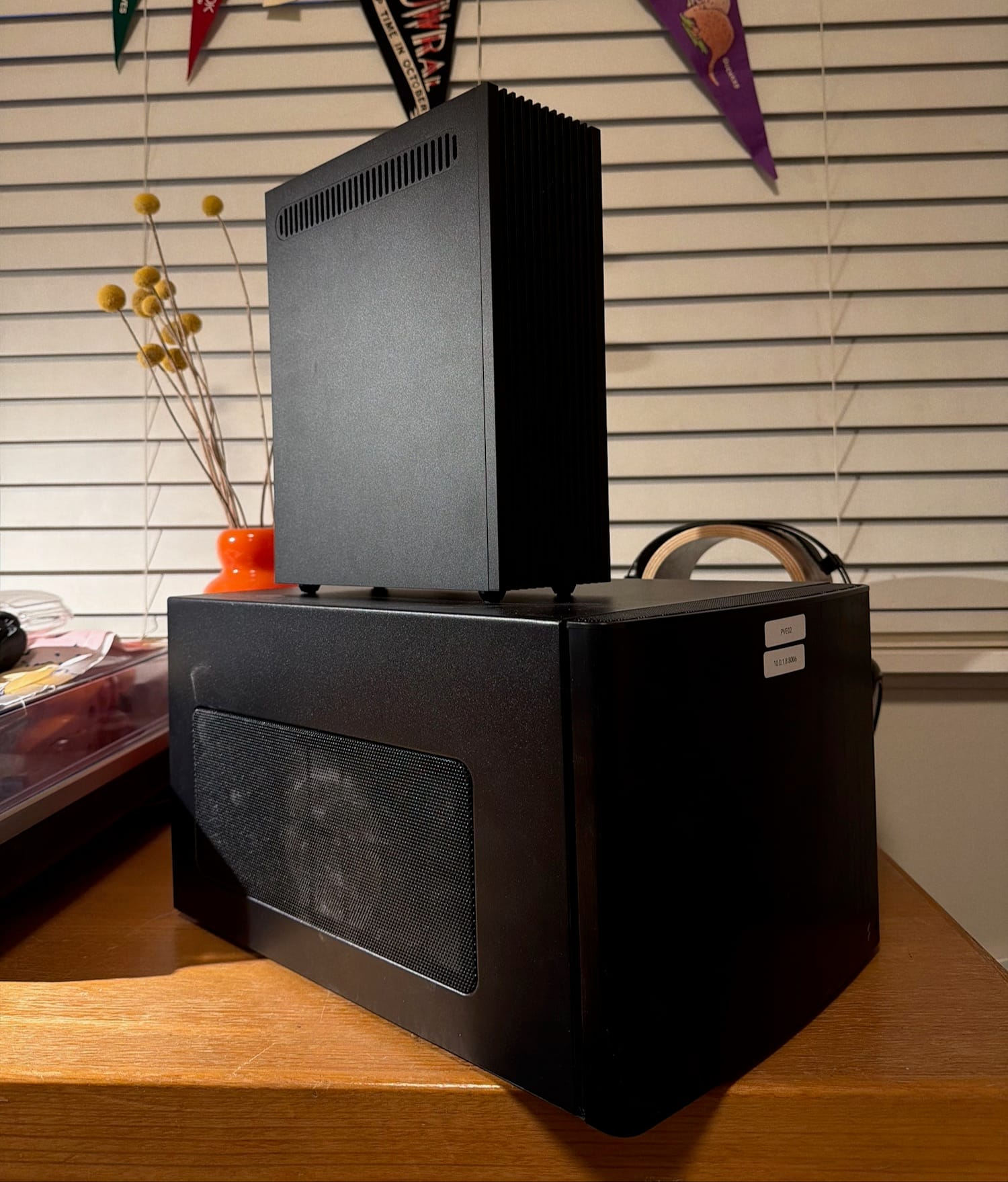
As part of downsizing my home-lab from a Fractal Node 304 to a sub 10L SFF case and I'll need to replace my Nvidia RTX 3070Ti which currently does two functions:
- Hardware Accelerated transcoding for Jellyfin
- OpenAI endpoint for automated AI-tagging for Karakeep - I'm currently using
ollama&gemma3:4bto serve this purpose
My requirements for the GPU are:
- Can encode/transcode HEVC/H.265 & x264
- Supports LLM & has 8GB VRAM min.
- Supports pass-thru with Proxmox & Ubuntu kernel
- New requirements
- Under $1000aud
- Low powered
- Fits in a sub-10L SFF case
- AV1 encoding support (nice to have)
What were my options? Not many due to the low profile requirement. It was down to the following:
- Nvidia RTX 4060/5060 LP 8GB ~$600-700aud - Low much wattage
- Nvidia RTX A2000 6-12GB (ADA) ~$700-1,000aud - Too expensive
- Intel Arc A310 or A380 Sparkle 4GB ~$200aud - Not enough VRAM
- Intel Arc Pro B50 16GB ~$700aud - The goldilocks spot.. or so I thought!
Since majority of other alternatives are either too costly (Nvidia A2000), not enough VRAM, too much power usage, I opted for the
I selected this cause I wanted to re-encode my library at some stage to AV1 using Tdarr.
That last one is probably reduces the options to a handful of GPUs so I ended up with an Intel Arc GPU, specifically the Intel Arc B50 Pro, a 16GB VRAM low-profile card that's perfect for size compromised spaces.
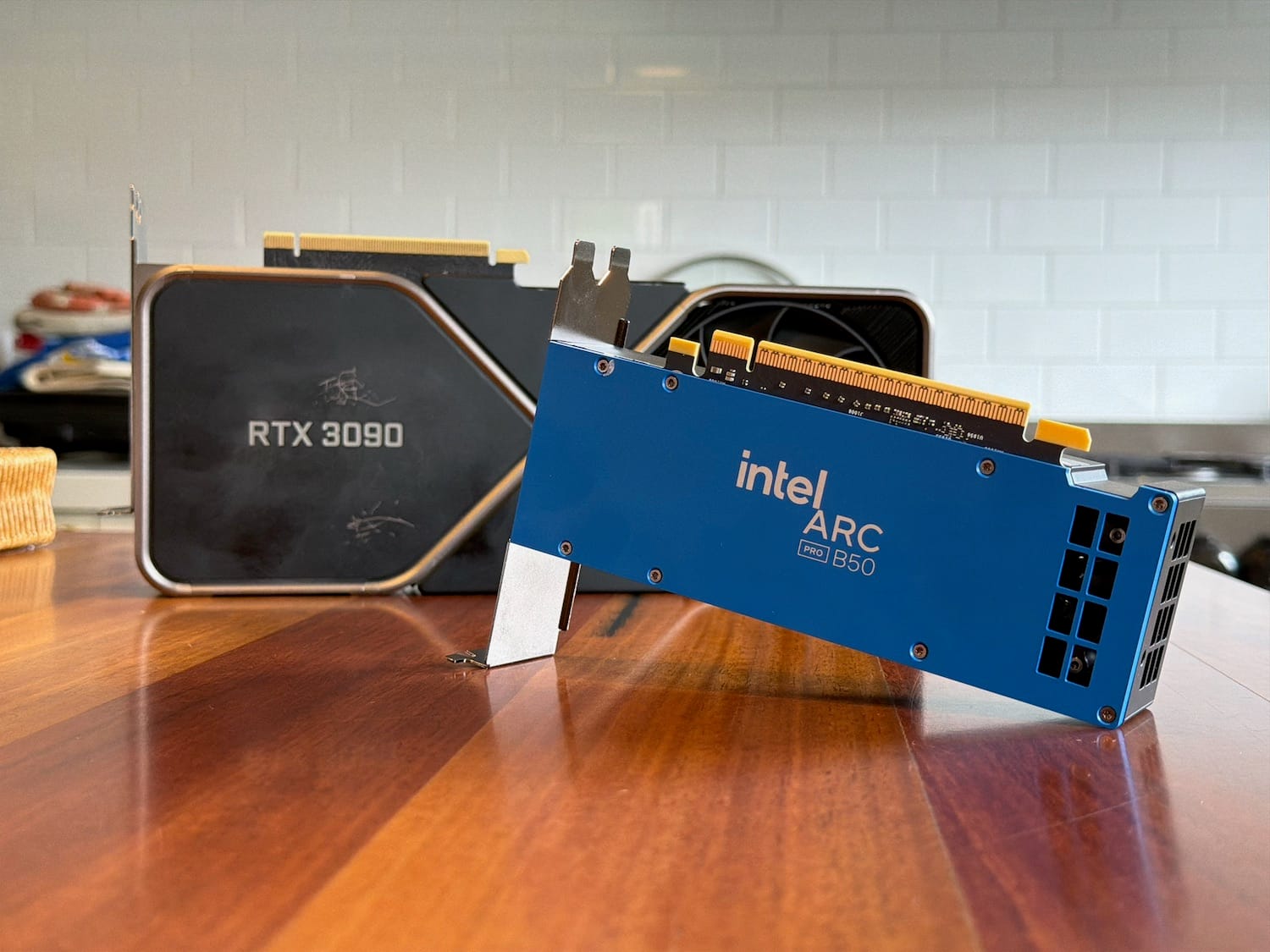
Dev Rig: Hardware Installation & Proxmox Test
Installation of the hardware was was simple enough, since it gets powered from the PCIe slot, there were no shenanigans with PCIe or 12VHPWR cables.
- I performed the following in the BIOS, I checked my BIOS version for my Dev (Asus ROG Strix B550-I)
- I then went through the BIOS settings and set the following:
- Enable Resizable-BAR (Re-BAR)
- Enable SR-IOV
- Check & Disable Legacy CSM (Mine was already disabled)
- Check & Enable UEFI Boot (Mine was set to 'Other OS)
Intel ARC support requires:
- Kernel 5.17+ for basic support
- Kernel 6.0+ recommended for better ARC support
- Kernel 6.2+ for more stable ARC Pro B-series support
- Once the PVE host booted, I ran
lspci | grep -i intelto ensure that PVE host's PCIe detected it
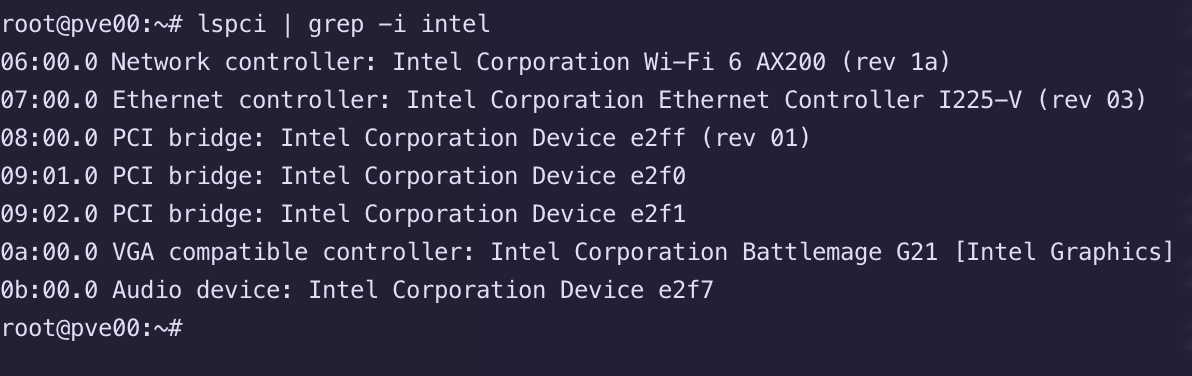
Cool! Time to pass-thru to Ubuntu VM.
Pass-thru to VM, updating kernel & testing with Ubuntu 24.04 LTS
- From Proxmox (PVE), I attached the PCIe Device to my Dev machine as a Raw Device
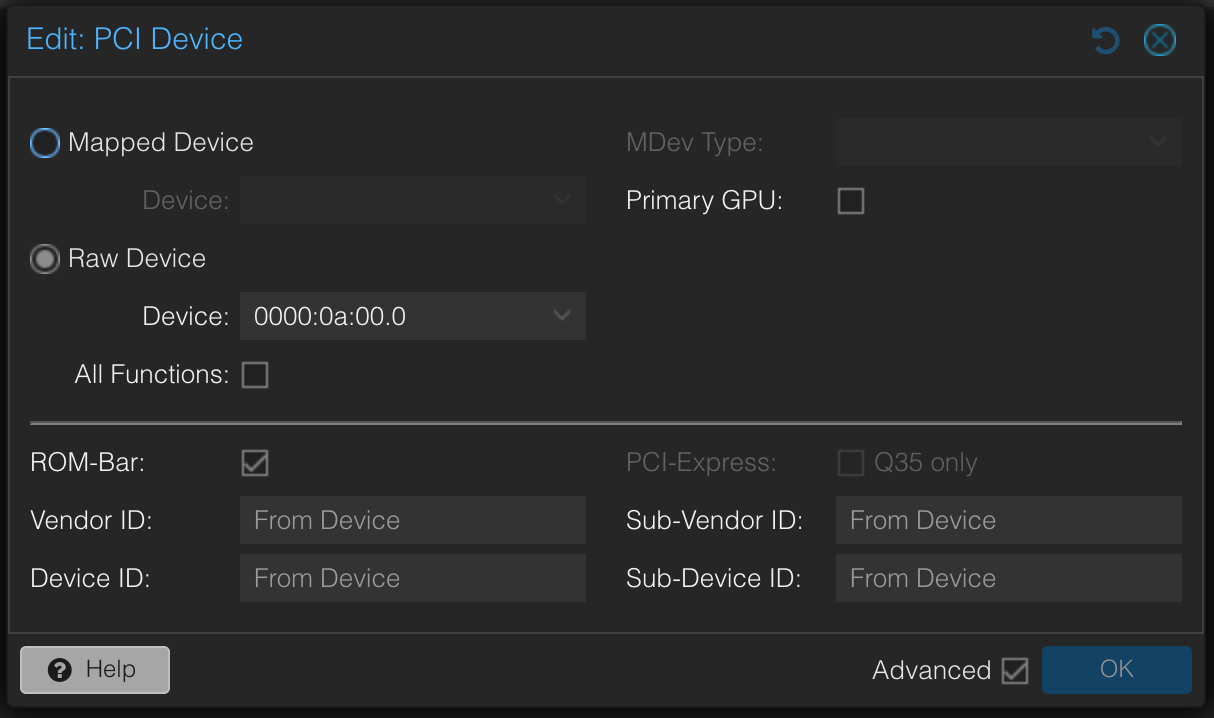
Then ran lspci -k | grep -EA3 'VGA|3D|Display' to check what VGA devices could the system see.
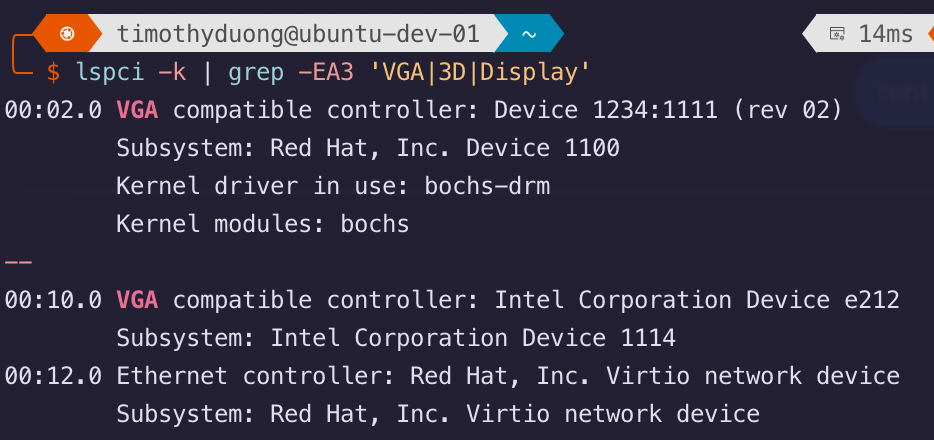
- I checked the kernel using
modinfo i915and found that Ubuntu 24.04.4 LTS Kernel is out dated also! - Time to load the drivers using
sudo apt update && sudo apt install -y linux-oem-24.04
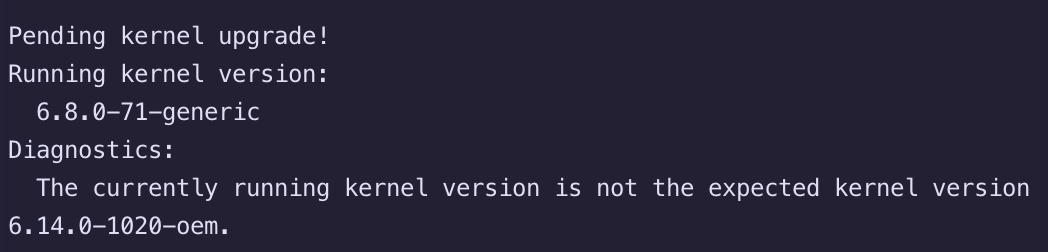
- Gave it a
sudo rebootand will check again usingmodinfo i915

- Ran
sudo dmesg | grep -i i915to see if the device's firmware was loaded.

- Ran
stat -c "group_name=%G group_id=%g" /dev/dri/render*to further validate device group_id

This will export the device render device details & related device group, we will need to add this group to the Jellyfin & OpenVino docker compose configs later
- Final command is
ls -l /dev/dri/this will let us know which device we need to pass-thru to later.
D128 is traditionally discrete GPUs and D129 are integrated.
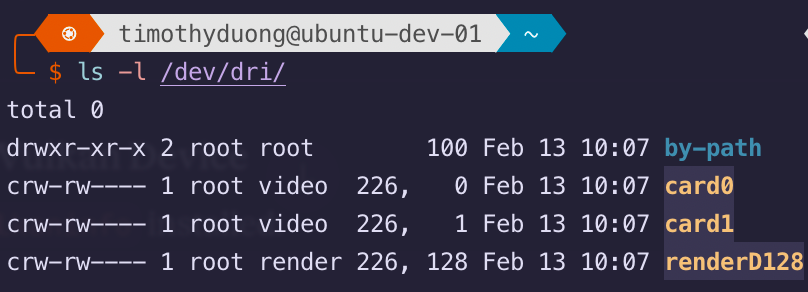
Awesome, we're good to go to testing with Jellyfin.
Updating Jellyfin & enabling Intel Hardware Acceleration
The following steps were done on my Dev machine that runs a Nvidia RTX 3090 but the same would apply to my Prod machine which runs a Nvidia RTX 3070 Ti.
- Sign into the Ubuntu server and back the contents for Jellyfin's
compose.yaml - Update the Docker Compose .yaml, remember to remove/update the relevant configs. The most important things for the Intel based card is
group_addanddevices: /dev/dri/renderD128to ensure the we're passing through the dGPU
services:
  jellyfin:
    image: jellyfin/jellyfin:latest
    container_name: jellyfin
    environment:
      - PUID=1000
      - PGID=1000
      - TZ=Australia/Sydney
    volumes:
      - ./jellyfin/config:/config
      - ./jellyfin/cache:/cache
      - ./jellyfin/media:/media
    port:
      - 8096:8096
    restart: always
    group_add:
      - '993' # Change this to match your "render" host group id and remove this comment
    devices:
      - /dev/dri/renderD128:/dev/dri/renderD128
networks: {}
New Jellyfin compose.yaml for Intel-based hardware acceleration
- Run
sudo docker compose downthensudo docker compose up
- I watch the logs to make sure Jellyfin starts back up without issues, after, I can detach from the logs by hitting
d
- Once it is active, sign into 'Jellyfin, Dashboard > Playback > Transcoding' and change the following options:
- Hardware acceleration: Intel Quicksync (QSV)
- QSV Device: /dev/dri/renderD128 (or can leave blank)
- I'm running an Intel 12600H which does NOT have an iGPU, if it did, I would need to check the renderer, e.g. /dev/dri/renderD128 or D129
- Allow encoding in AV1 format: Yes
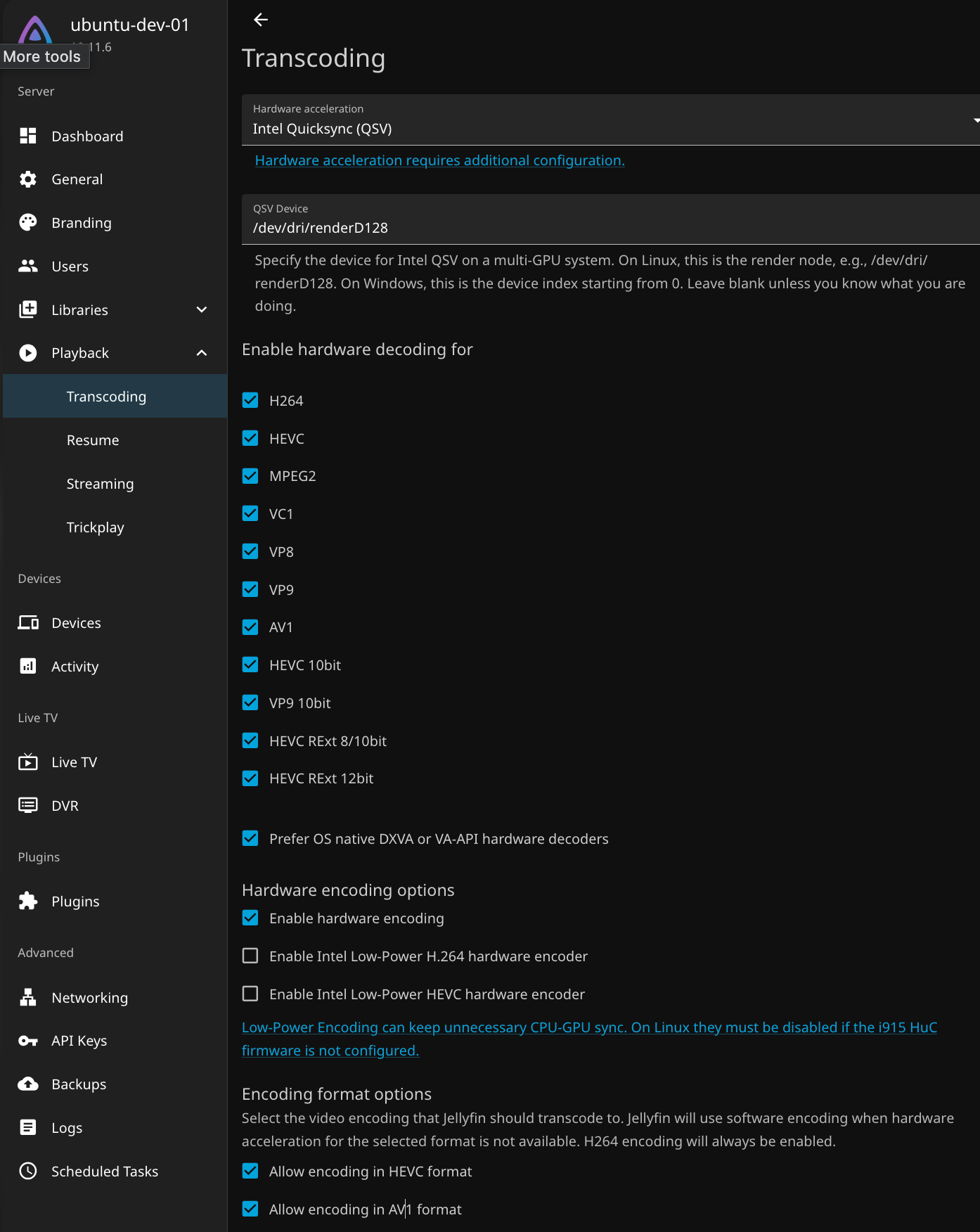
- Hit 'Save' then lets start testing, by loading up a 4K video.
Before & After (Nvidia vs Intel QSV)
Here is a snippet of the performance between a RTX 3070 Ti and the Arc B50 Pro for Jellyfin Transcoding when Jellyfin's quality Setting is Auto with a 13GB 4K video (Bitrate: 24.0 Mbps, Video codec: HEVC Main 10, Video bitrate: 22.5 Mbps, Video range type: HDR10)
- Before: Nvidia RTX 3070 Ti - ~190-200 fps (8x) using NEVC for HEVC
- After: Intel Arc B50 Pro - HEVC 22.8 Mbps @ 238 fps (10x) using Intel QSV for HEVC
- Additional AV1 encoding @ 245 fps which the 3070 Ti did not support, AV1 transcoding is pretty awesome.
Other benefits is QSV for trickplay imagery which is not a big one but still not too shabby to leverage over the standard VAPI.
Production Rollout
Now that we're good to go, I need to get it working with my main rig.
I also recommend updating the BIOS of the Motherboard and updating the Proxmox OS prior to dismantling. I didn't do this and faced some issues which could have been a variable to stop by performing it prior to the changes.
Also, I took note of the drives and SATA cable connections. Because I accidentally swapped the SATA connection ports, I had some RAM Disk initialisation issues but that was fixed after swapping the cables to the original configuration. Thankfully I took screenshots of the BIOS' SATA connections.
- On the existing Host, update BIOS and then Hypervisor or Host OS / Kernel if required
- Take pictures of the Sata configuration if you're planning on dismantling the system. Not required for GPU only changes.
- In Proxmox:
- Backed-up VMs to PBS
- Removed the PCIe pass-thru device from the VM
- Power-off the Machines
- Notify the Jellyfin users on Discord that my Shared Services will be offline for 2 hours
- Powered off the Proxmox bare-metal host.
- Dismantle and re-build into the new case.
- Go through the steps listed earlier in this blog article!
Part 2 will go through how I replaced Ollama with OpenVino.
Resources
- Jellyfin Guide for Intel-based Hardware Acceleration





Member discussion